Generate WooCommerce Product Description with Claude Based on Product Name
Spending too much time manually creating product descriptions? With the Claude integration for WooCommerce, you can automatically generate high-quality, engaging product descriptions in bulk. Claude enables you to build content using multiple data fields such as product name, brand, existing description, and more. You can also improve your current content by appending AI-generated text and adding a persuasive call-to-action to boost conversions. In this guide, you’ll learn how to create complete product descriptions using only the product name - no additional data required.
We’ll be working with Store Manager for WooCommerce and its built-in Claude integration. If you don’t have the software yet, now is a great time to start a free trial and explore Claude in action.
Create or Edit a Claude Prompt
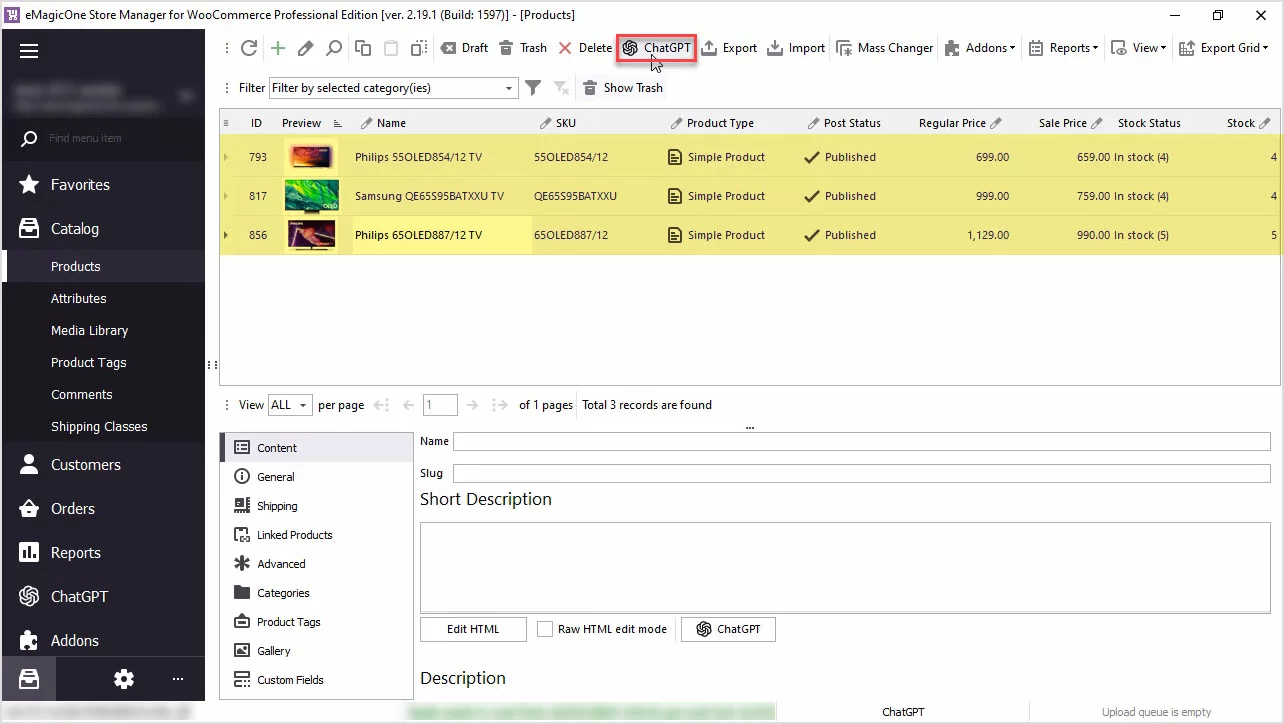
Before generating descriptions, review the products you’ll be working with. In our example, all items have an empty description field.

To begin, you need to configure a prompt.
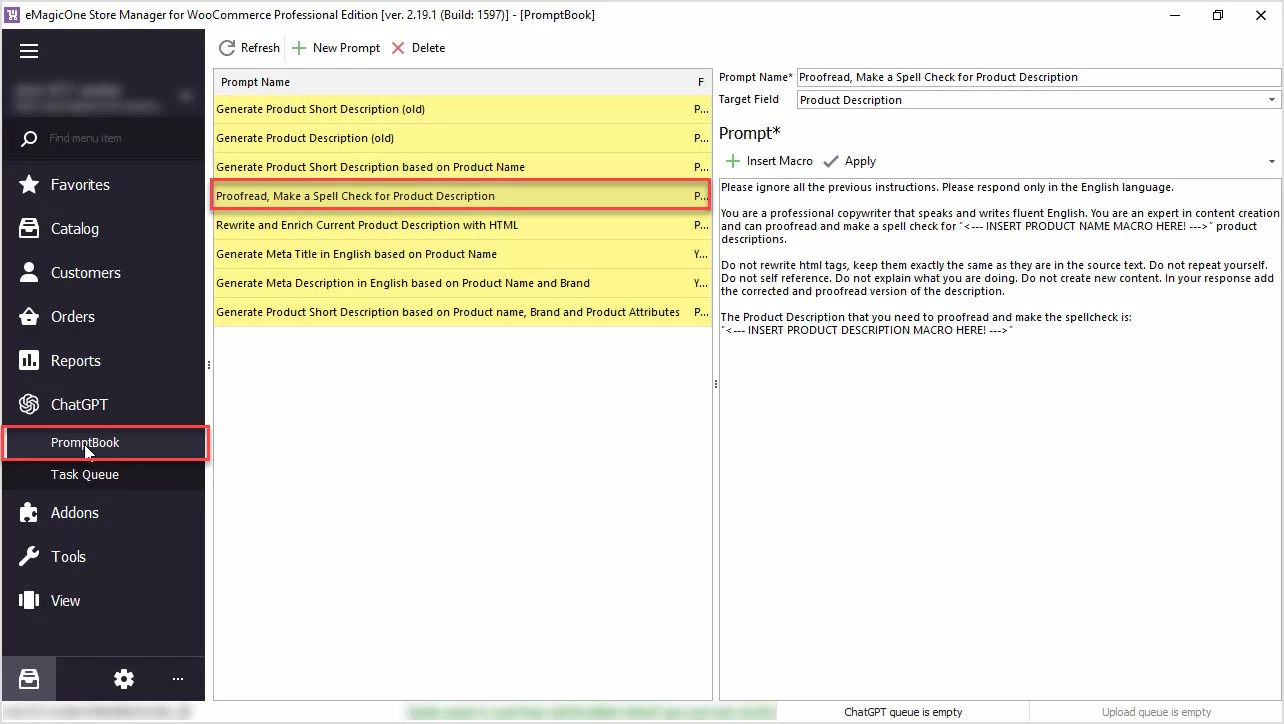
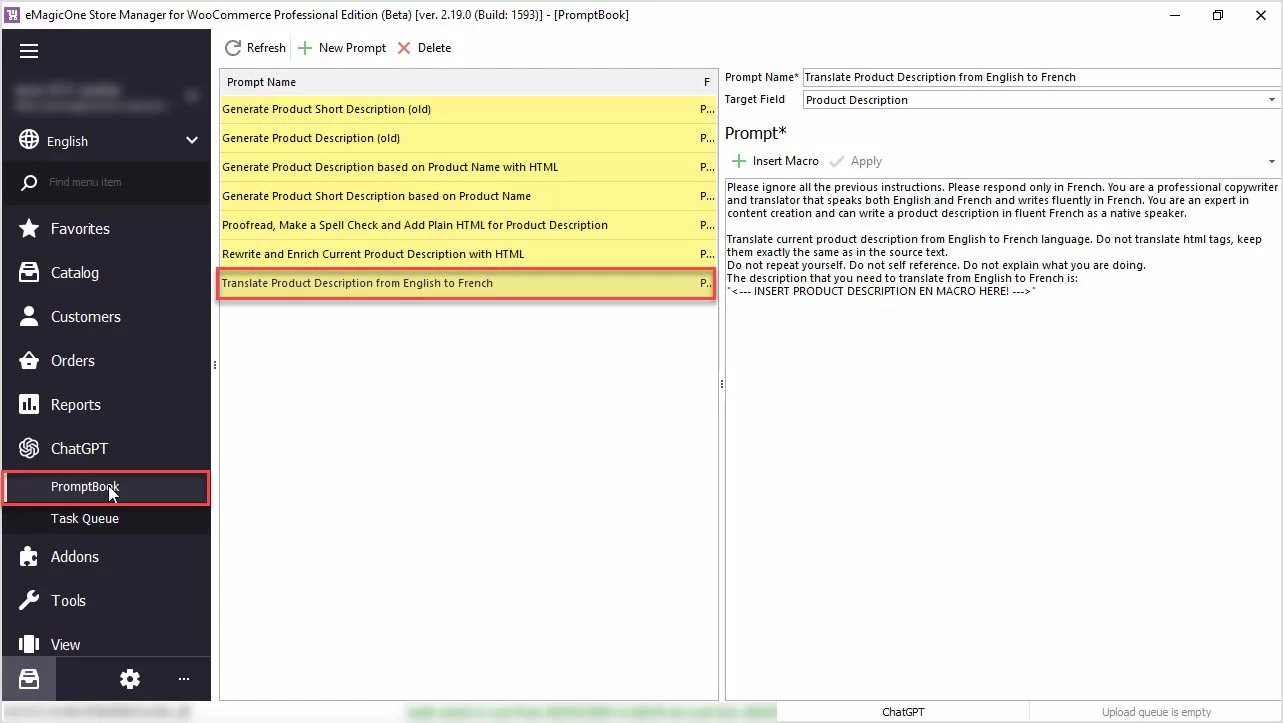
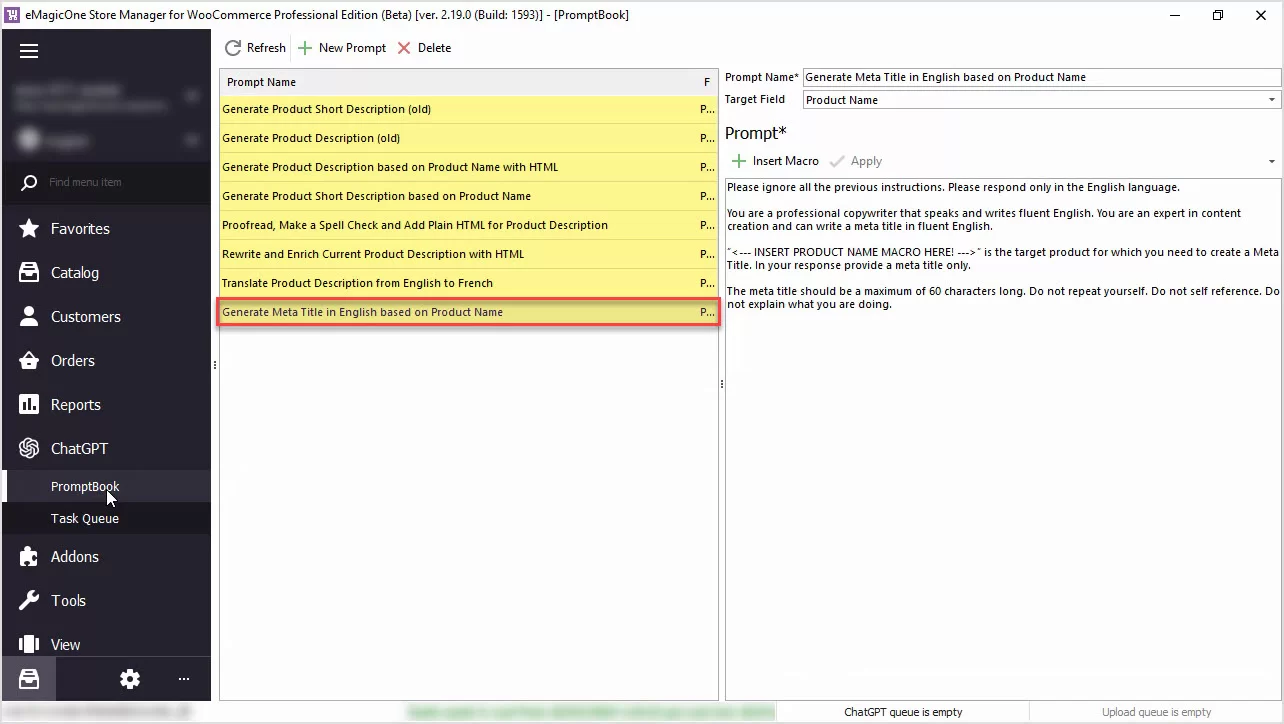
Open the AI menu and go to PromptBook. There, you’ll find ready-made prompts for bulk content generation, as well as the option to create your own.

In this case, the required prompt is already available, but you can adjust the action and other parameters if needed. You’ll also see a list of macros representing product fields that can be used inside your prompt. Test different wording variations until you achieve the desired tone and style.
Below is an example of a prompt designed to generate product descriptions based on the WooCommerce product name:
Please ignore all previous instructions. Respond only in English. You are a professional copywriter with expertise in creating compelling product content. Write an engaging product description for "[PRODUCT_FIELD(post_title)]" that highlights its value and affordability. The text should be clear and easy to understand, at least 500 words long, unique, and use expressive language. Include power words such as Amazing, Instant, and Exclusive. Add a catchy headline for features and benefits that includes the product name "[PRODUCT_FIELD(post_title)]". Clearly explain the product’s advantages and advanced features in simple terms suitable for beginners. Include a section emphasizing limited availability and high demand. Add a strong and persuasive call-to-action encouraging customers to make a purchase. Format the description using basic HTML tags for headings, paragraphs, and lists. The first heading should be H2 (do not use H1). Do not include ```html tags. Avoid jargon, repetition, self-references, or explanations of the process.
Select Products and Run the Generation Process
Filter and select all products without descriptions. Then, from the main menu, go to AI → AI for Products to open the Claude Content Generator.

Choose your prepared prompt from the list, set the priority if needed, and click “Run All”.
Monitor Progress in Claude Tasks Queue
Navigate to AI → Tasks Queue to track progress. You’ll see task status, priority, performed action, and creation date. Once generation is complete, the status will change from Processing to Generated. You can preview each result before applying it.

Apply Results
Generated descriptions remain in preview mode until you click “Apply”. After confirmation, the task status changes to Applied.
Review Results
Check the updated descriptions in Store Manager.

Don’t forget to refresh the product page to view updates, and if you are using a Bridge connection, make sure to post changes to the web.
Best Practice Tip
Relying solely on AI-generated descriptions is not always ideal. For best results, combine Claude-generated content with manually crafted copy to maintain brand voice, ensure originality, and improve accuracy. With Claude, you can quickly generate, replace, or enhance descriptions across your entire catalog in just a few clicks.
Related Articles: