Generate WooCommerce Meta Descriptions with Claude Based on Product Name and Brand
Claude integration available in the Store Manager app can generate WooCommerce product meta descriptions in bulk based on product names and brands automatically, saving you time doing it manually. If you haven’t tried the software yet, now is a great time to start with a free trial that includes AI functionality.
Yoast SEO plugin is supported!
Let’s get started!
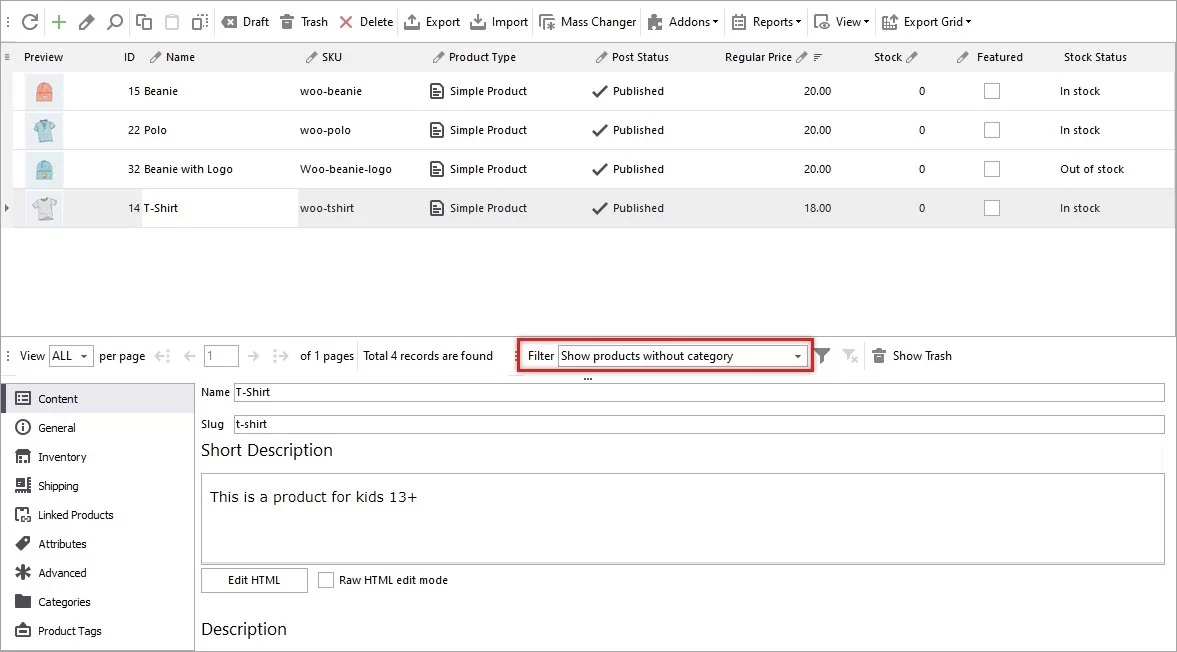
In this guide, we’ll show you how to generate product meta descriptions with Claude and Store Manager for WooCommerce. Before diving into content generation, first review your current catalog data. In the example below, our WooCommerce products currently have empty meta description fields.

Create Your Custom Prompt
To generate new meta descriptions, begin by editing your prompt. Open the Claude menu and navigate to PromptBook, where you’ll find a collection of prompts that can be applied to your catalog in bulk.

This is where you can create and customize your own prompt to match your business needs. For this example, we’ll use a prompt designed to generate product meta descriptions based on product name and brand or manufacturer.
Perfect Brands plugin is supported.
Set your target field to Product Meta Description, which is where the generated content will be saved. You’ll also see a list of macros representing available product fields that can be inserted into your prompt for more precise content generation. Specify what action should be performed.
In this example, we’ll generate new product meta descriptions using product name and brand, replacing any existing metadata if present.
Experiment with your prompt structure to produce the most effective metadata for your store. In this case, we’ll generate descriptions using product name and brand. Once ready, click “Apply” to save your prompt.
Open the Claude Mass Changer
After your prompt is ready, return to the product grid and select the products you’d like to update. It’s a good idea to test the process on a small batch first before running it across your full catalog. Click the “AI” button to access plugin settings.

Open the Claude Tasks Queue
Run the generation process and navigate to the Tasks Queue to monitor progress. Here, you’ll see each selected product along with task statuses changing from Pending to Generated as Claude creates the content.

Before applying changes, you can review Claude’s generated responses for each product.
Apply the Generated Results
Once you’re happy with the generated meta descriptions, click “Apply” individually or process them in bulk.
Review Changes in Your Store
After applying updates, your WooCommerce metadata will be refreshed directly inside Store Manager for WooCommerce.

This process can be applied to your entire WooCommerce catalog in bulk. You can also choose to replace, append, or prepend generated text, and use additional product fields such as color, size, or other attributes to further enhance or rewrite your metadata.
We hope this guide helped demonstrate how Store Manager for WooCommerce and the Claude integration can simplify and accelerate your metadata creation workflow. Start your free trial today and experience faster, smarter WooCommerce content generation with Claude!