How to export WooCommerce reviews?
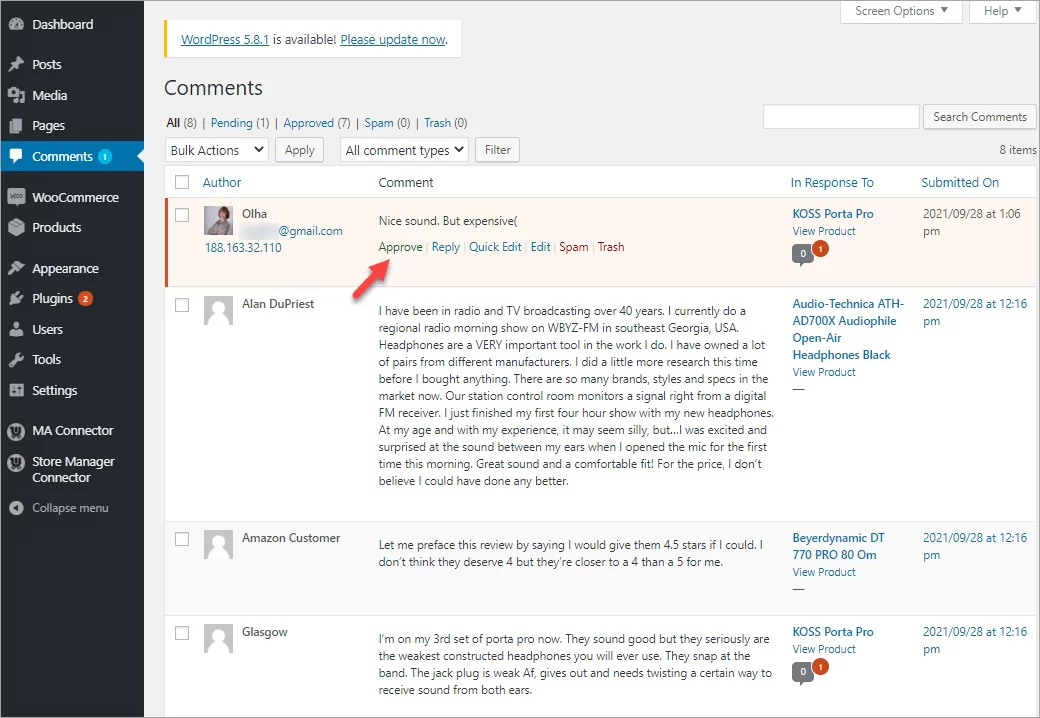
There are multiple reasons why you might need to export WooCommerce reviews or comments. The most prominent is tht product reviews boost sales and improve search visibility. Don't miss out a change to export your reviews while you are moving to a new platform, if you want to add reviews to other stores, to schedule posts with customer reviews on Social media, or if you need reviews to be exported for any other reason.
The best tool to export WooCommerce reviews in case you have access to the WooCommerce site is Store Manager for WooCommerce. Download free trial version to perform reviews export at no cost. If you have one, proceed with the steps below and have your reviews exported in few clicks.
Export WooCommerce reviews with Store Manager software
To export reviews from your WooCommerce store, with Store Manager software proced with the following steps:
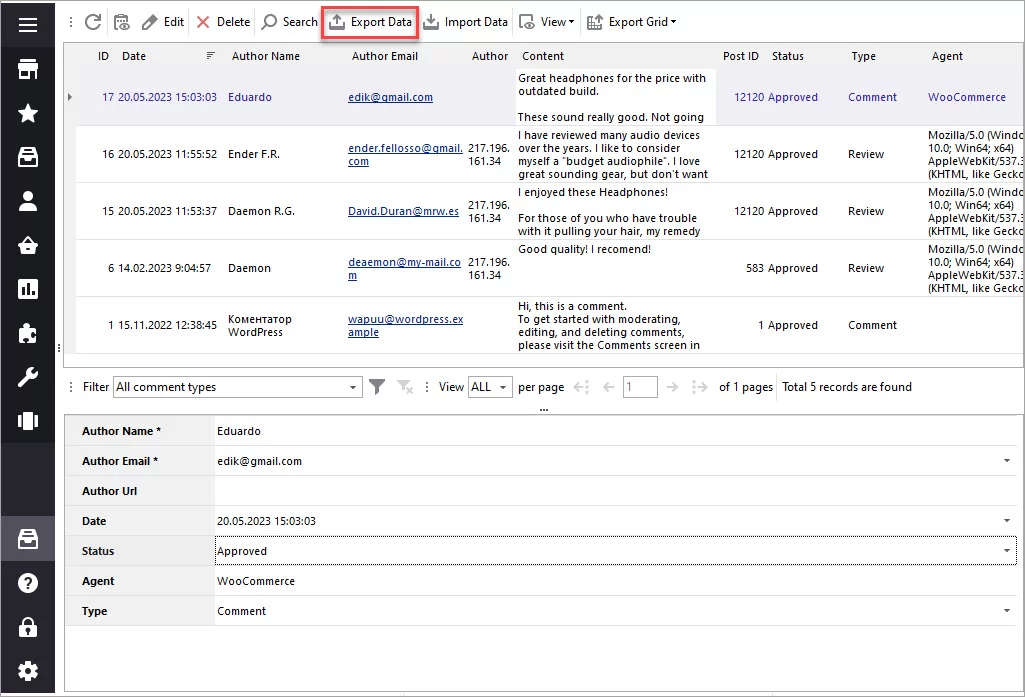
- Go to Catalog > Comments section. Here you should see all yoru product reviews and commends.
- Use Export Data button to run reviews export wizard
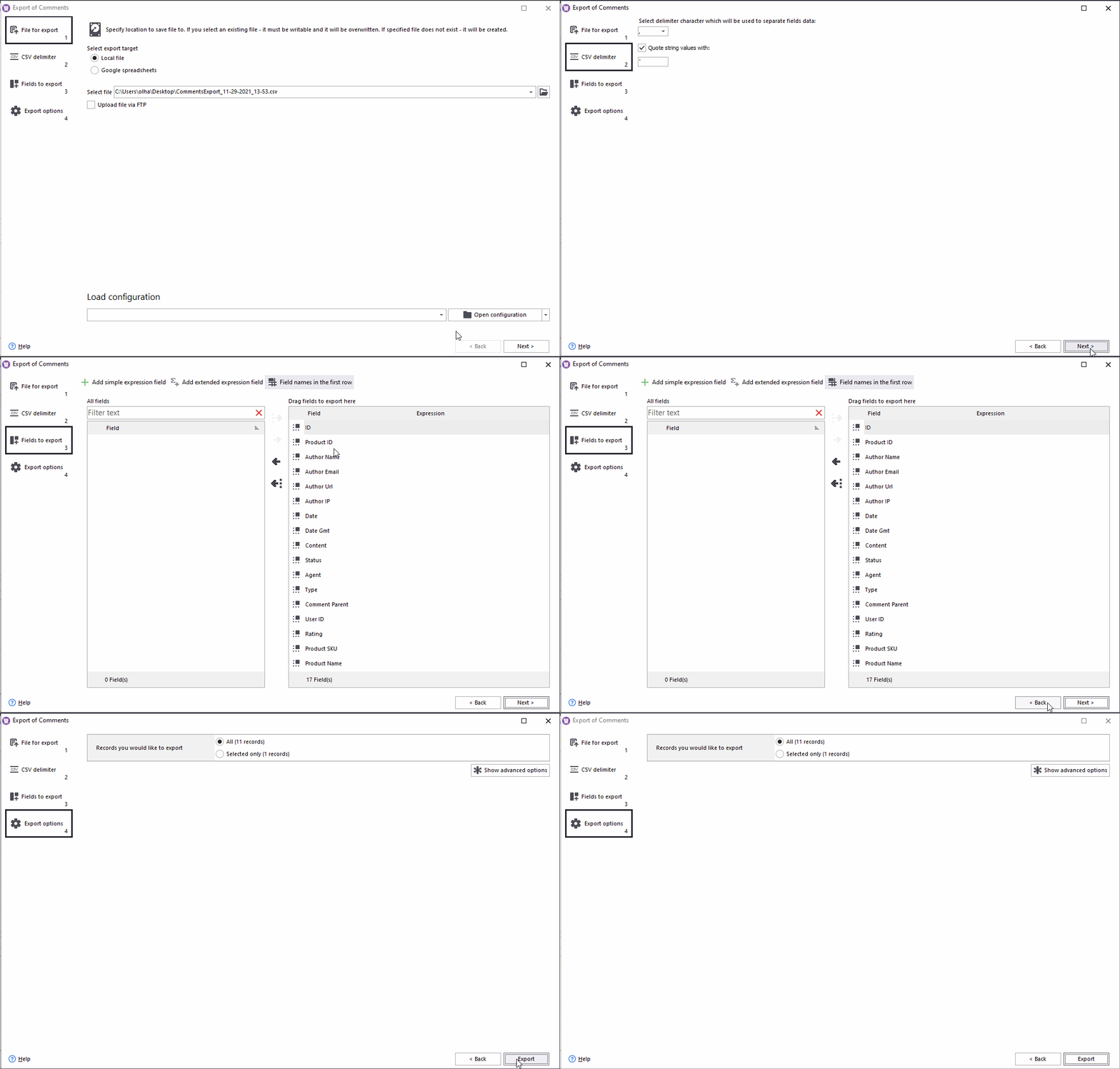
- Select whether to save data locally in CSV format or export reviews to Google Docs.
- Select the delimiter (if you had opted for CSV export).
- Add fields to be exported.
- Select whether to export all or selected products.
Check the file once the export is done. Make sure the file contains the following details, to be able to import the file in the future:
- Product name or SKU (for product identification)
- Date or ID of the comment (for comment identification)
- Author name
- Author email (if available)
- Comment itself
- Type (review or comment)
- Rating (if available, enter as a number)
- Status (if the status is not specified in the file, comments will be imported as approved)
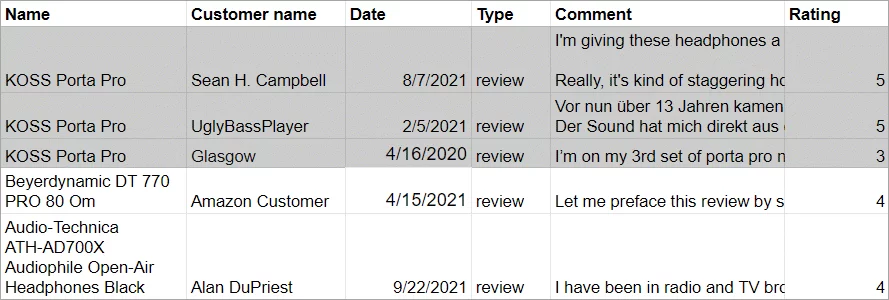
Here is a file sample to import reviews from Amazon to our test store. As you can see, the first product has three reviews. Therefore, they are listed in three separate rows:
Summing up
Using the Store Manager import tool, you can export reviews from WooCommerce and import into any otehr platform.
If you have any questions or assistance with reviews, write us in the comments below and we'll try to help you!